Upgrade Guide
Learn how to upgrade RunsOn.
Whenever a new version of RunsOn is available, you will need to update your current stack with the latest version of the CloudFormation template.
This guide is also valid if you simply want to update one of the stack parameters, for instance to update the LicenseKey parameter once you have purchased a license.
Update the CloudFormation stack
Direct update
-
Go to
CloudFormation > Stacks, then click on your RunsOn stack. -
Now click on the
Updatebutton, and selectReplace current template.
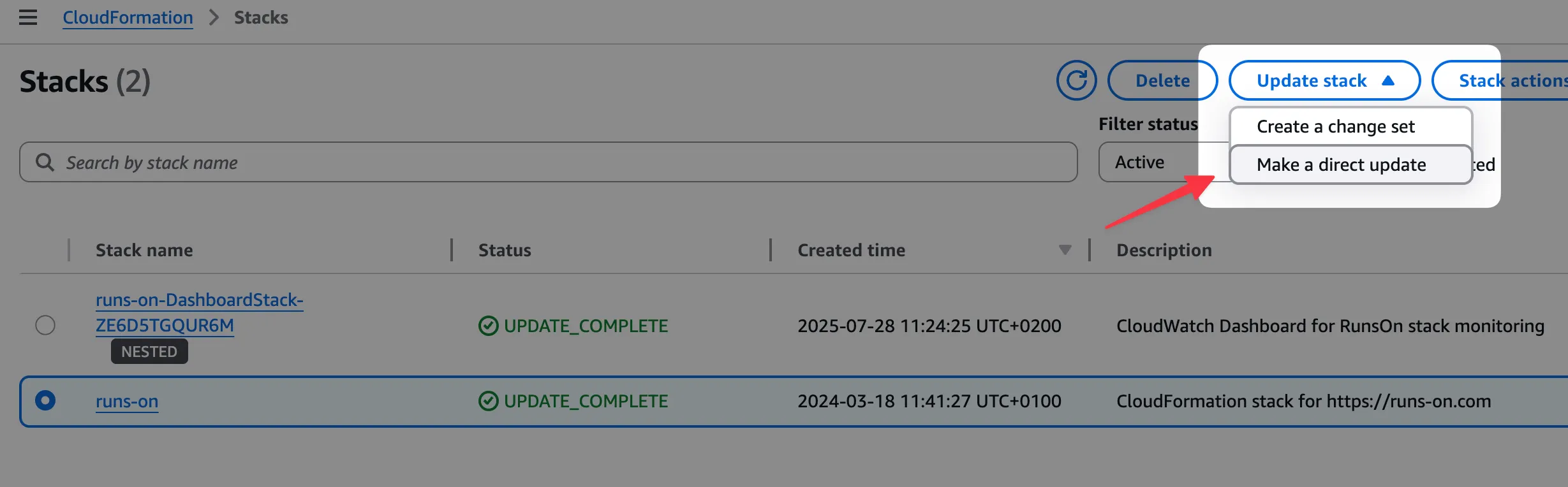
- Enter the following URL:
https://runs-on.s3.eu-west-1.amazonaws.com/cloudformation/template-v3.0.8.yaml- Then click
Next.
- On the next screen, ensure all required parameters are given, then click
Nextuntil you get to the recap screen. At this point, clickSubmitafter checking the permission boxes.
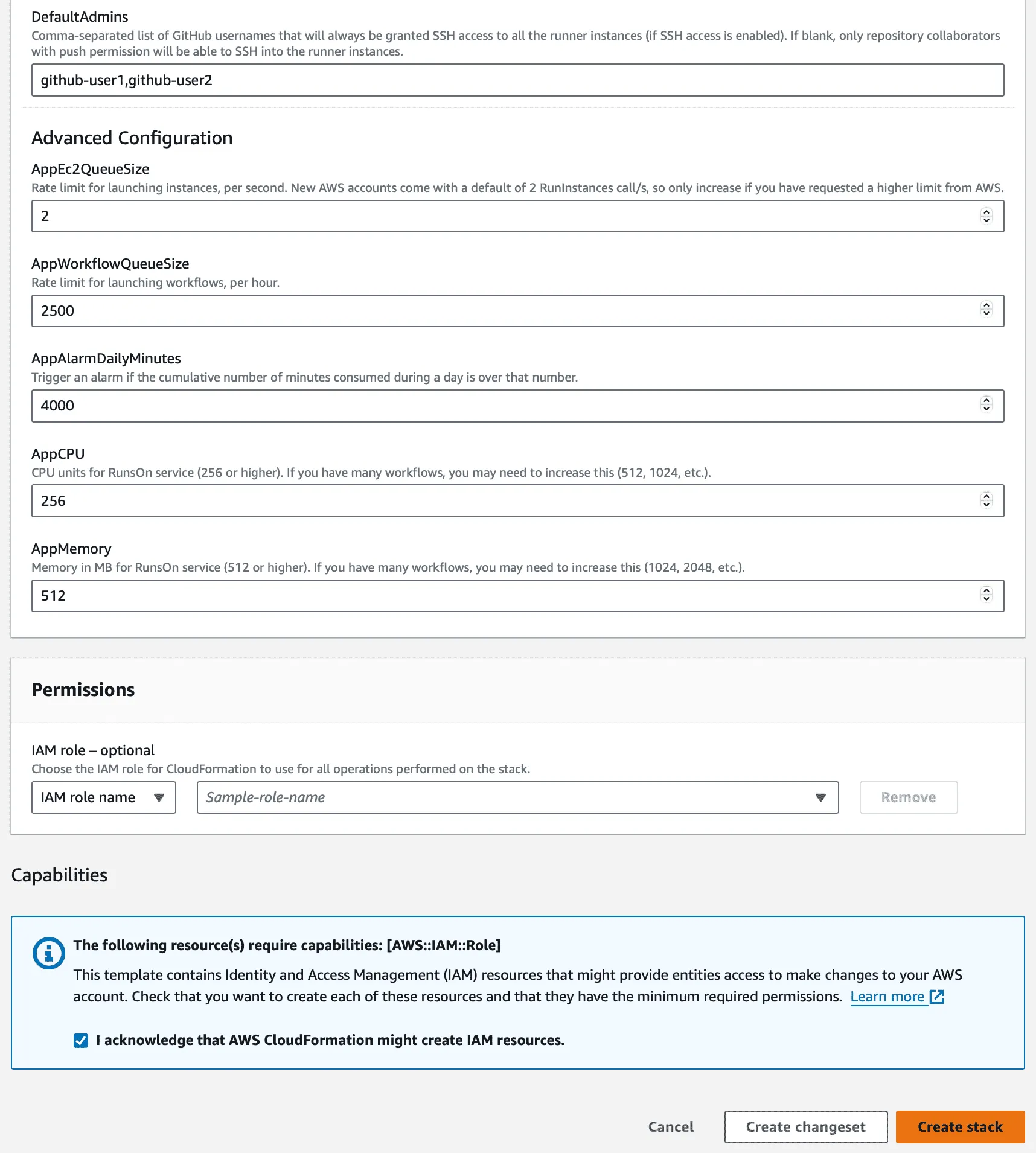
Using changesets to preview the changes
Verifying the installation
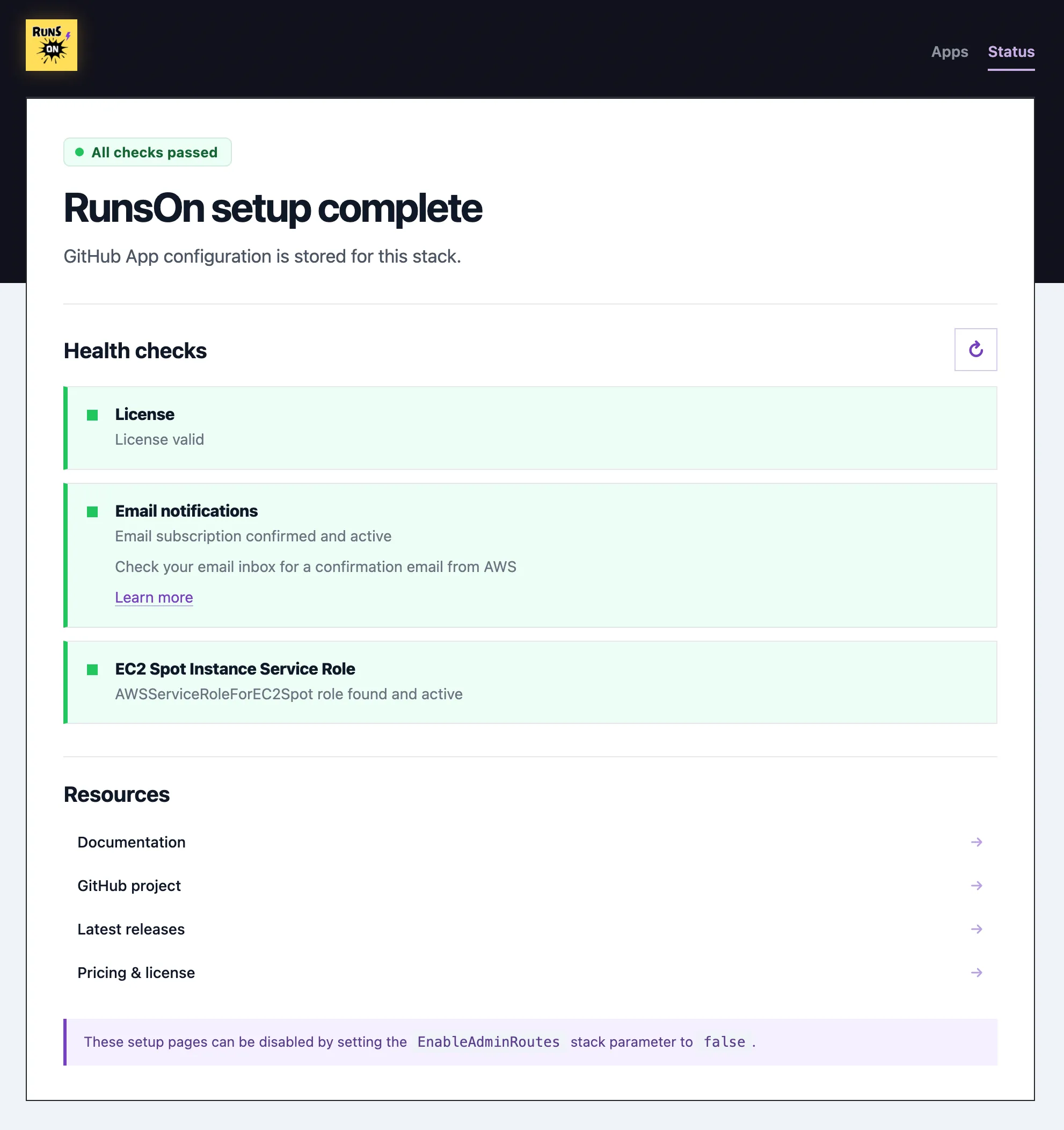
You can verify the status of your installation by opening the RunsOn entrypoint URL from the CloudFormation stack outputs. If everything went well, you should see the following output:
Rolling back
If for any reason you need to roll back to a previous version, you can do so by directly referencing the previous version of the CloudFormation template.
- Go to
CloudFormation > Stacks, then click on your RunsOn stack. - Click
Update. - Select
Replace current template, and enter the following URL:
https://runs-on.s3.eu-west-1.amazonaws.com/cloudformation/template-VERSION.yamlYou will find the version-specific CloudFormation template URL in the Changelog.
Blue-green deployment
If you want to test a large upgrade without upgrading your current stack, you can use a blue-green deployment strategy.
- Create a new stack with the new version of the CloudFormation template (follow the installation guide, using the same license key).
- Register the GitHub App, assign the necessary repositories, and verify that you get the success screen on your new RunsOn entrypoint URL.
- Once the new stack is operational, put the old stack into maintenance mode by updating
MaintenanceModetotrue. - Trigger a few jobs, verify that they start and end up on the new stack version (you can use the
Runner detailslogs in the GitHub job output, underSet up job, to check for the correct version). - Once you are satisfied with the new version, you can then permanently delete the old stack, as well as the corresponding GitHub App.
- If the new version is not working as expected, put the new stack into maintenance mode, set the old stack’s
MaintenanceModeback tofalse, and investigate before trying again.